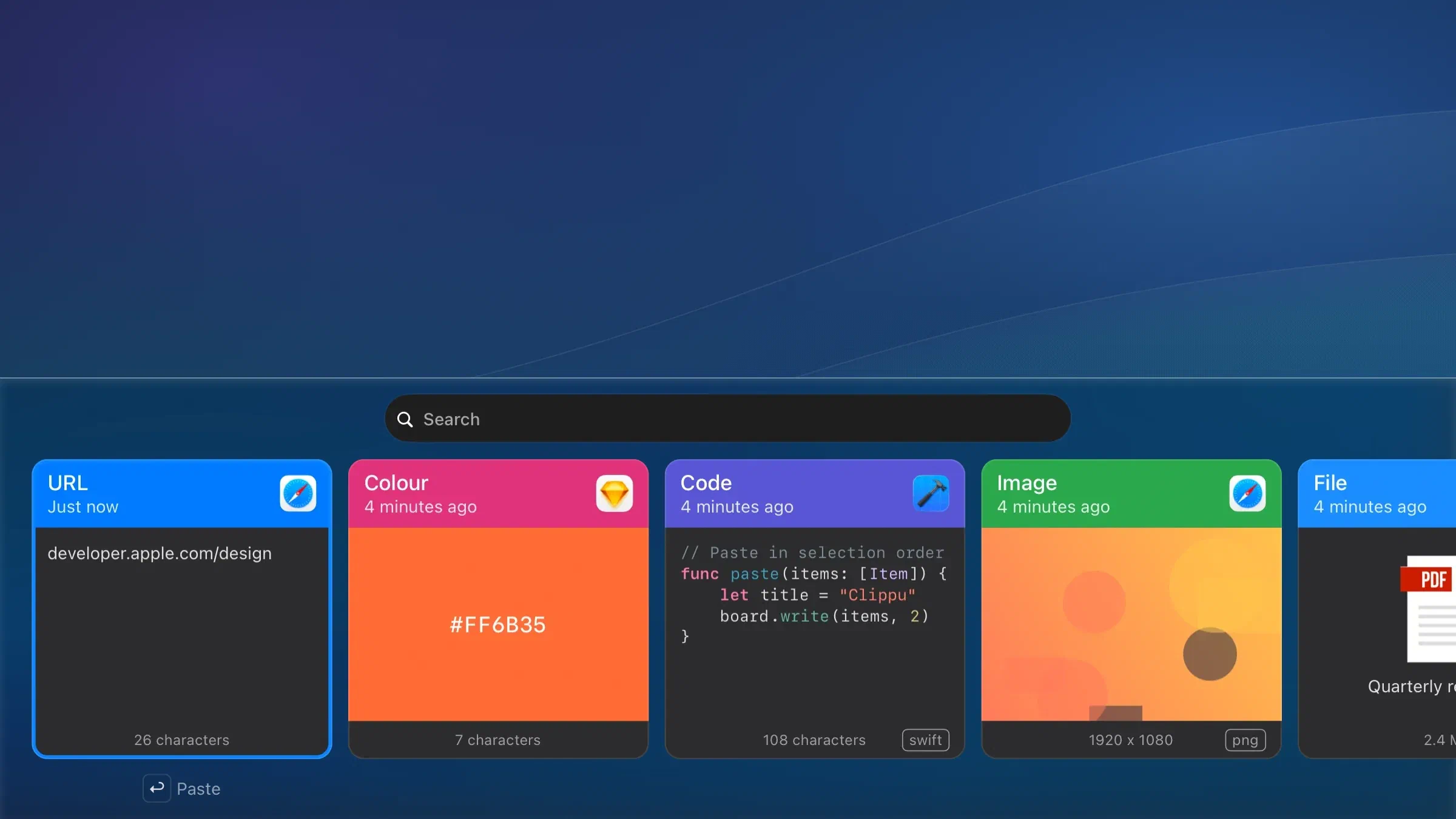
Your clipboard history as a row of cards
Clippu runs in the background and keeps what you copy.
Press the shortcut and your history opens along the bottom of the screen.
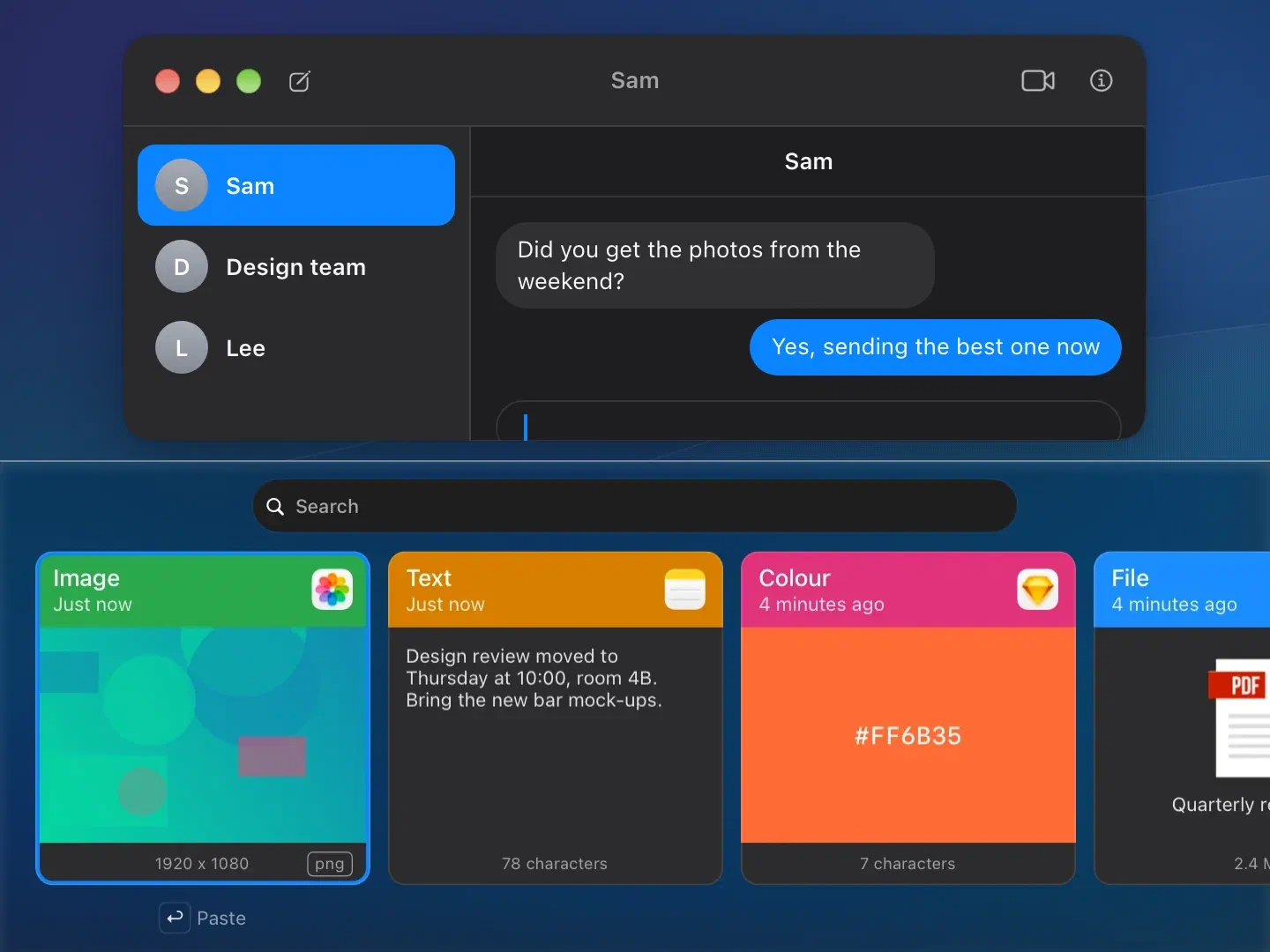
Find an item, press Return, and Clippu pastes it into the app you were using.
01
Every Kind of Copy
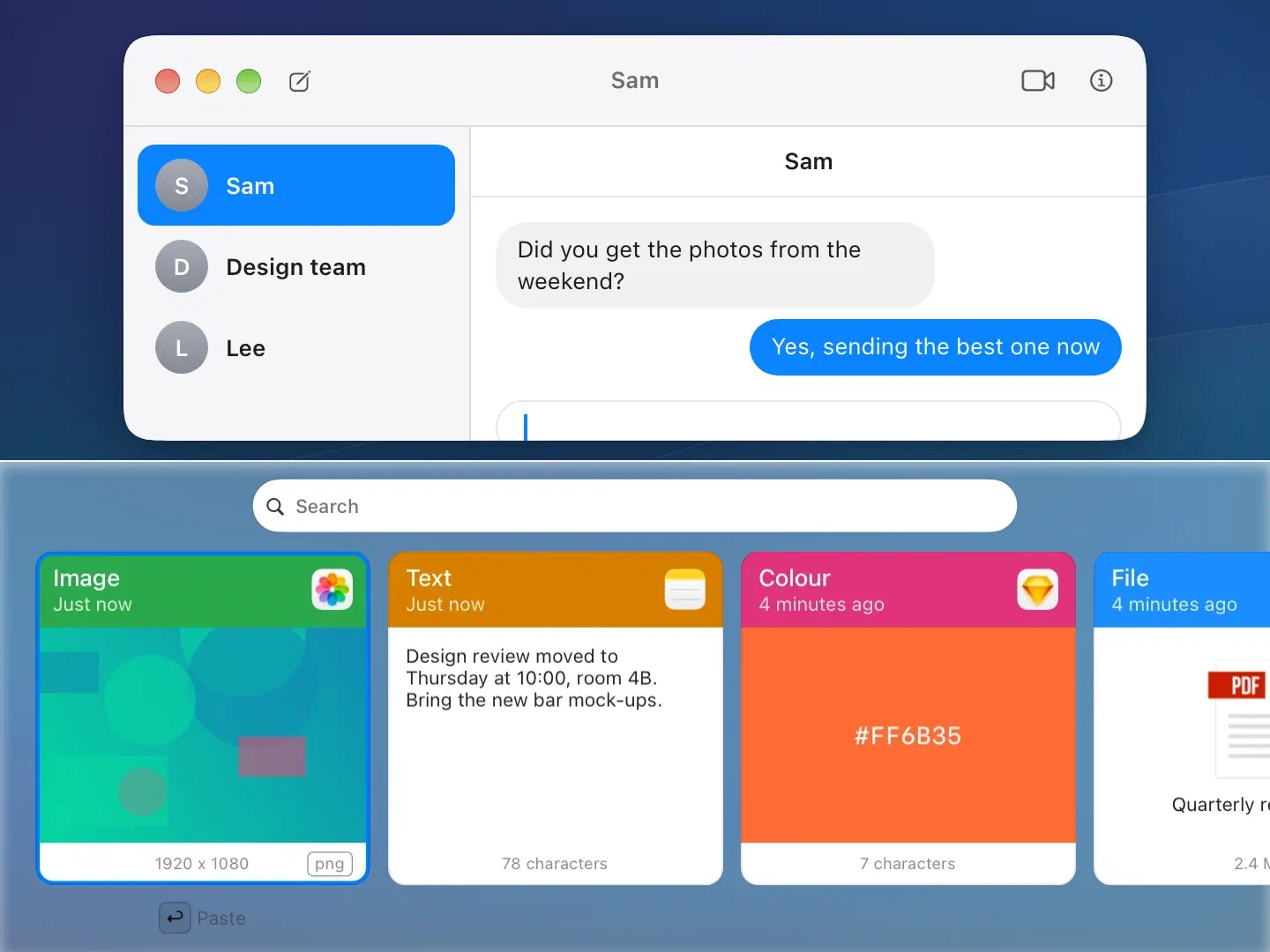
Text, links, code, colours, images and files each get a card that shows what they are.
- Code is syntax highlighted.
- Colours show as a swatch with their value.
- Images show a preview.
- Files and folders show their Finder icon and name.
- Links show the title the app copied with them. Clippu never loads the page.
Image, file and code cards show their file type or language in the corner.
02
Search Everything
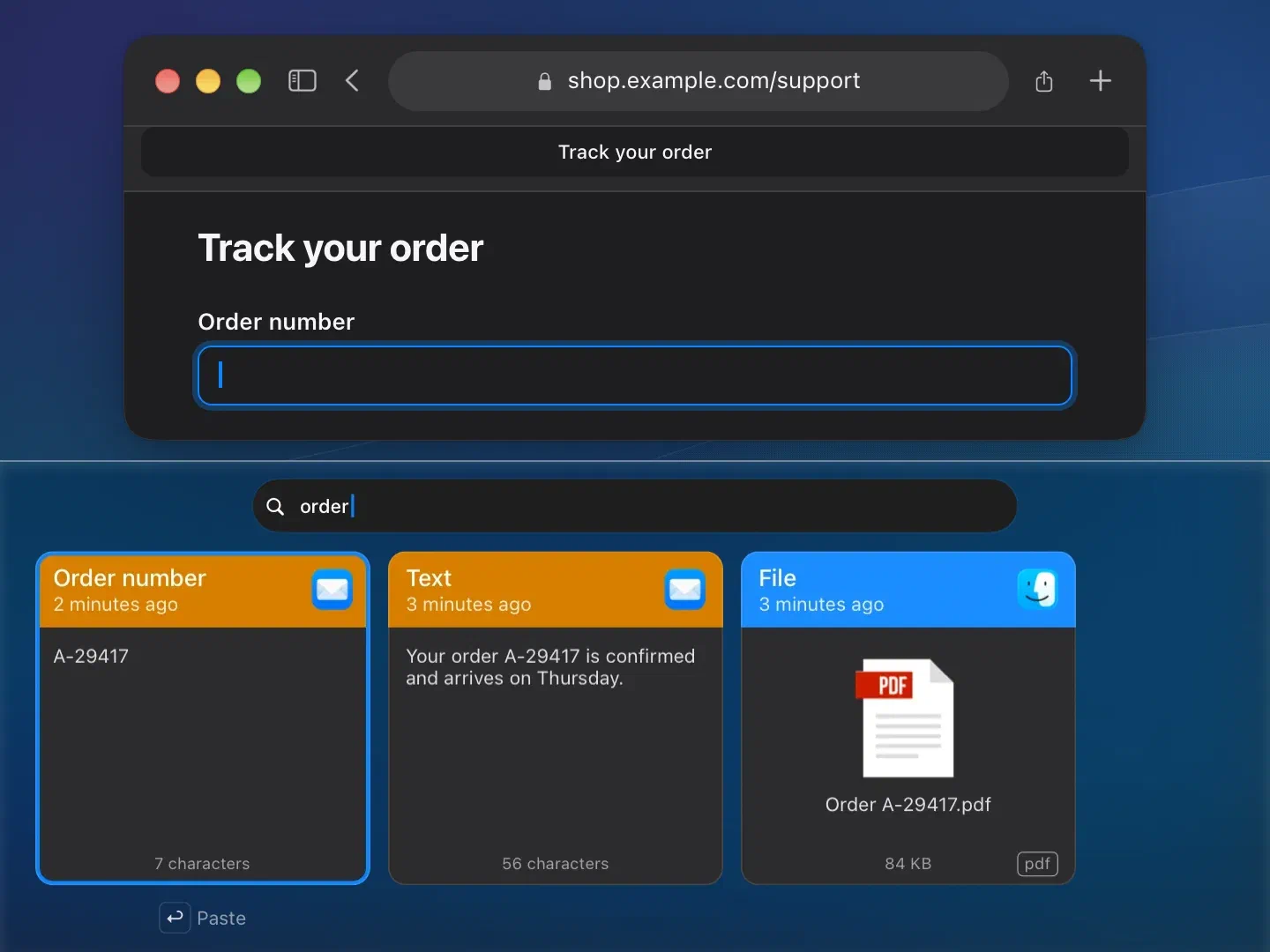
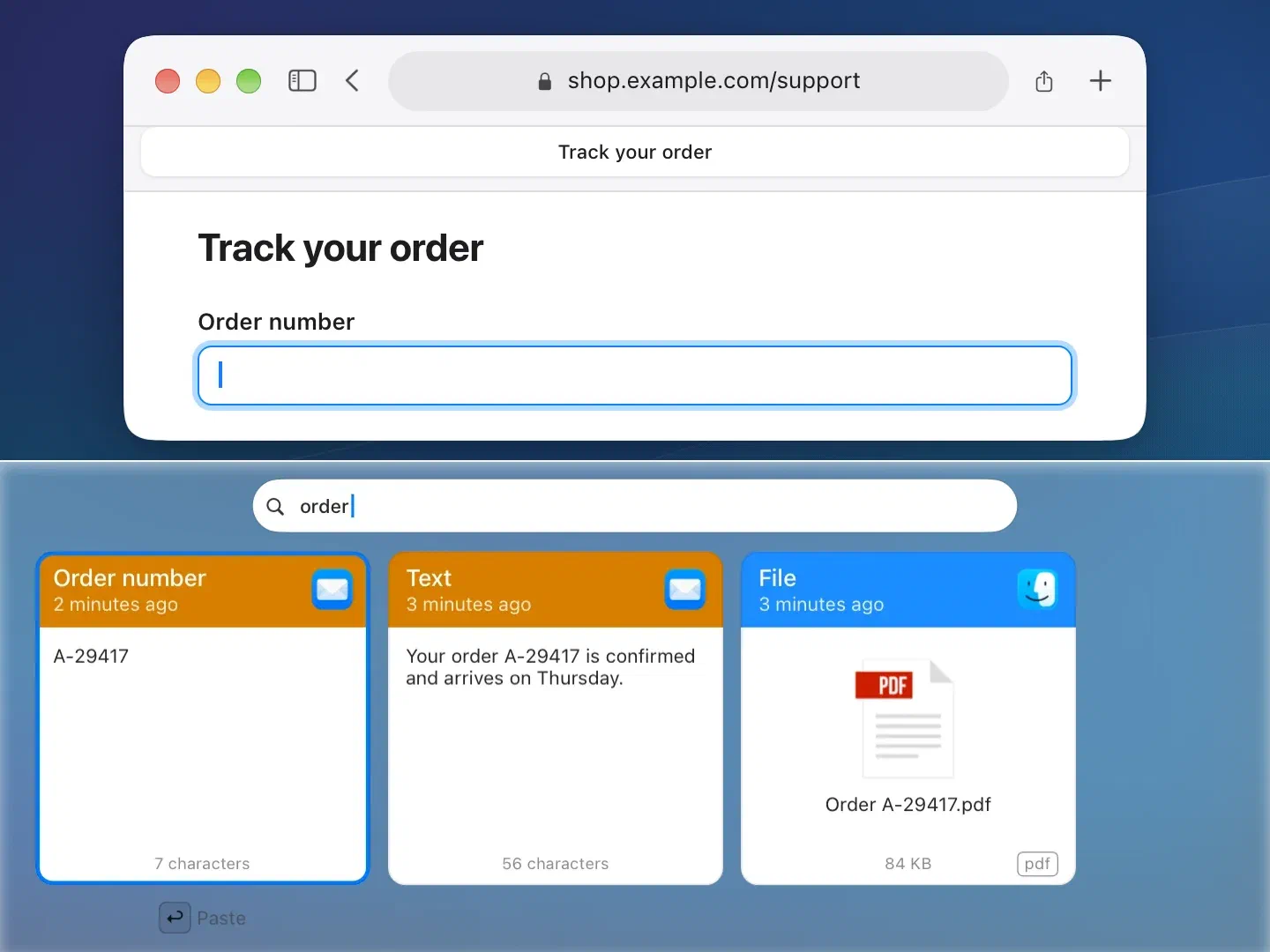
Start typing to search every item you copied.
Results update with every key you press, and the best match is ready to paste.
03
Text in Screenshots
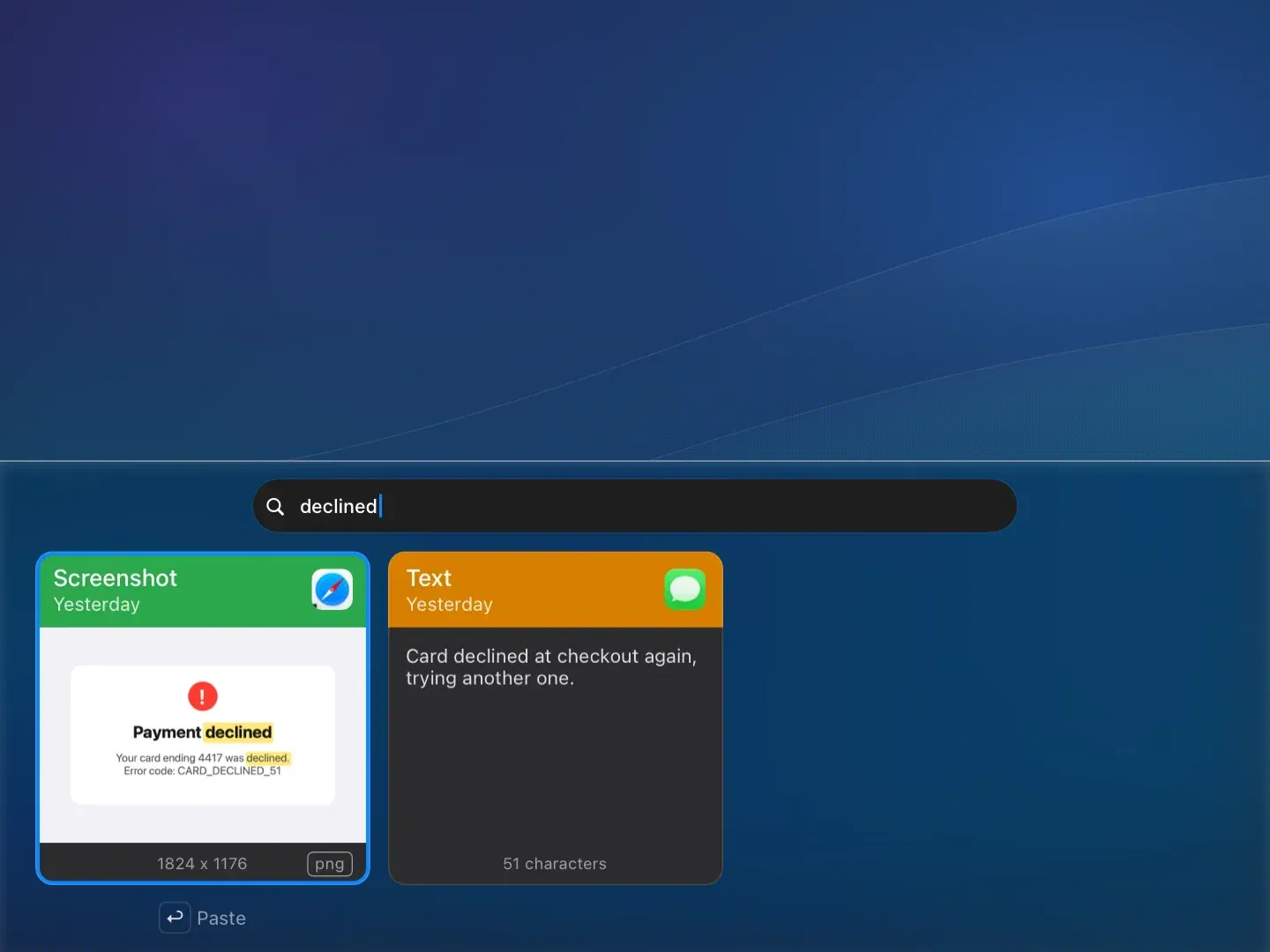
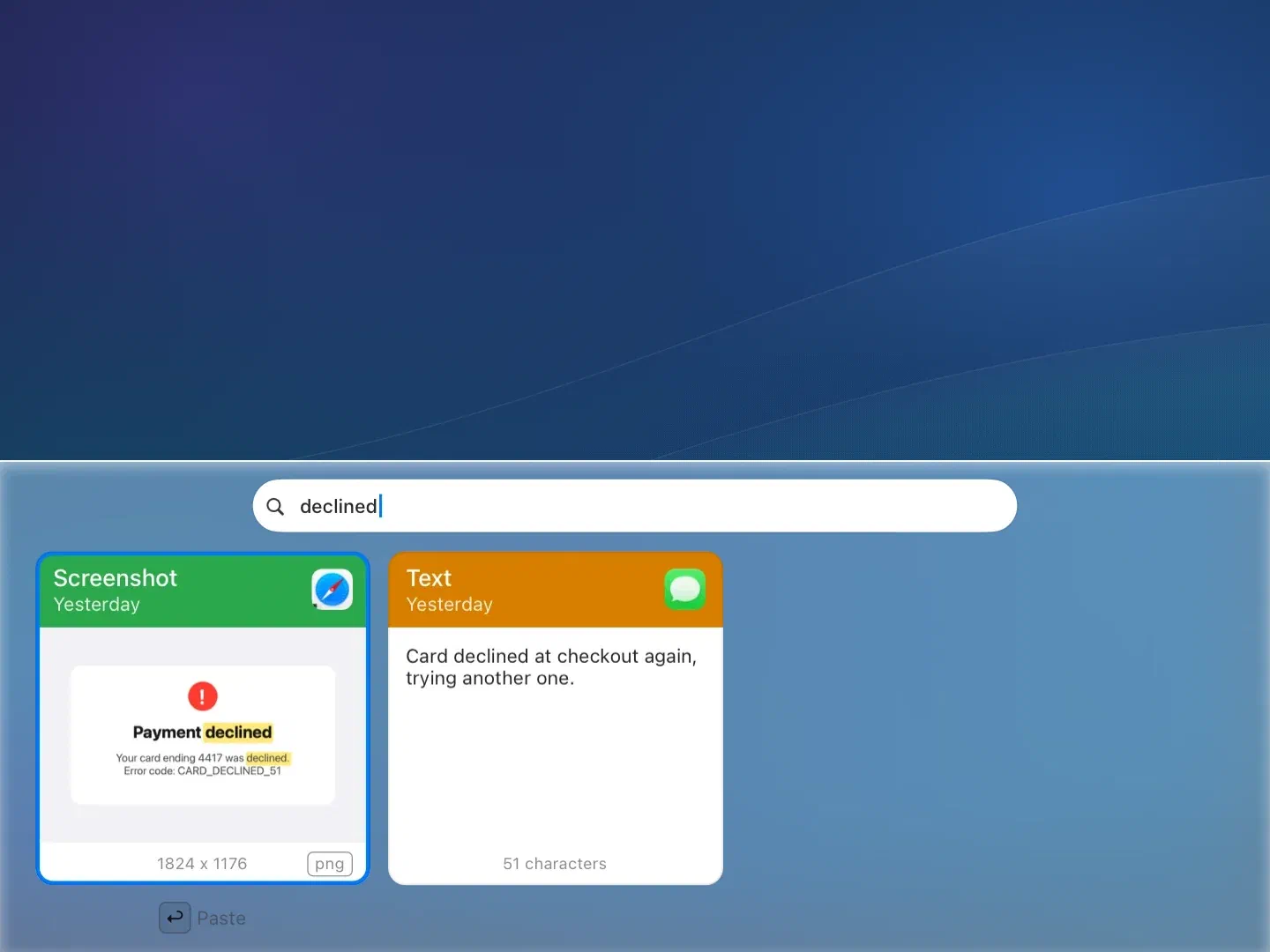
Search finds words inside your screenshots and copied images.
Clippu reads the text in every image on your Mac, so a screenshot of an error turns up when you search for the error. Nothing is sent anywhere to do it.
04
Search Scopes
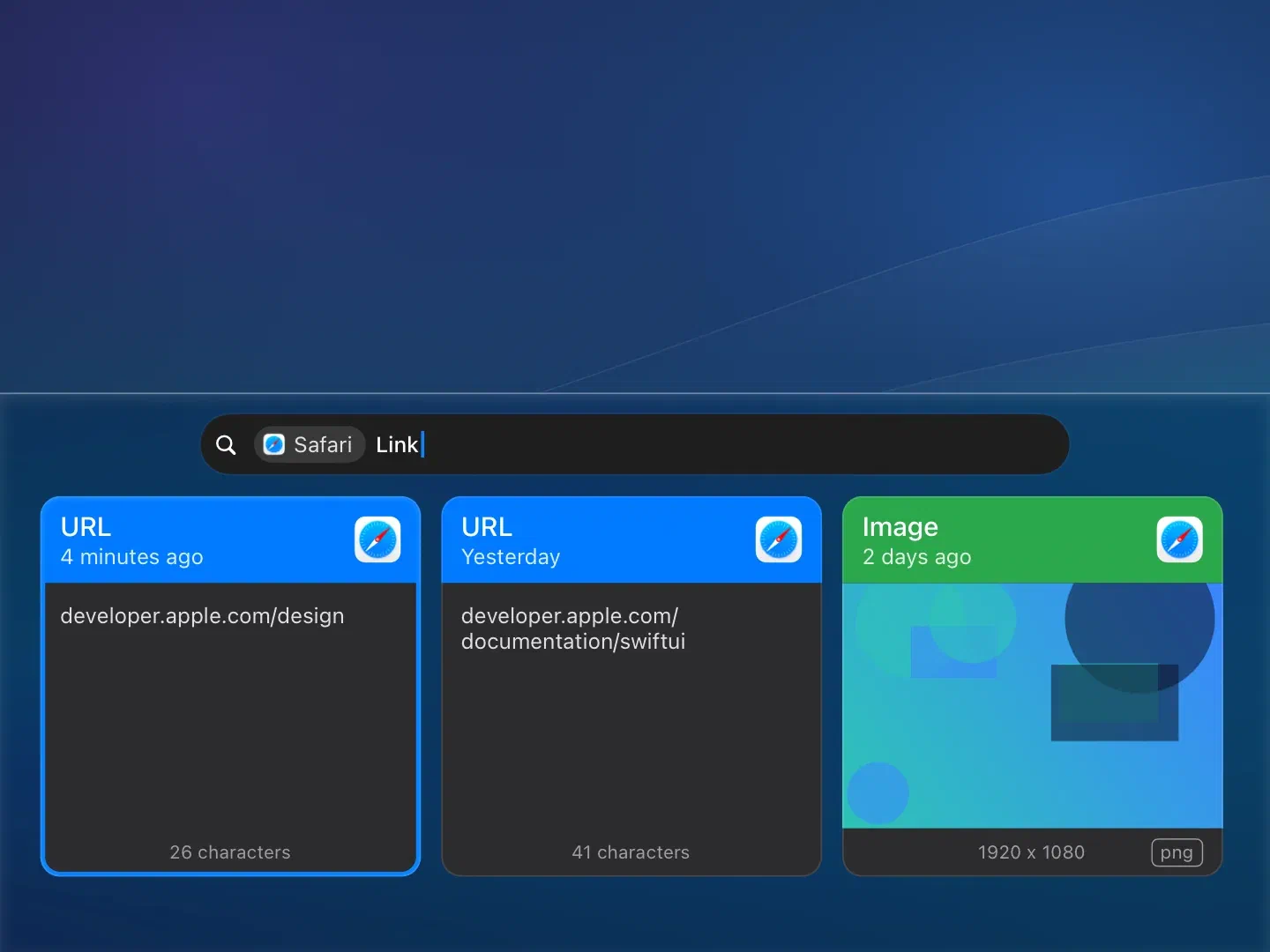
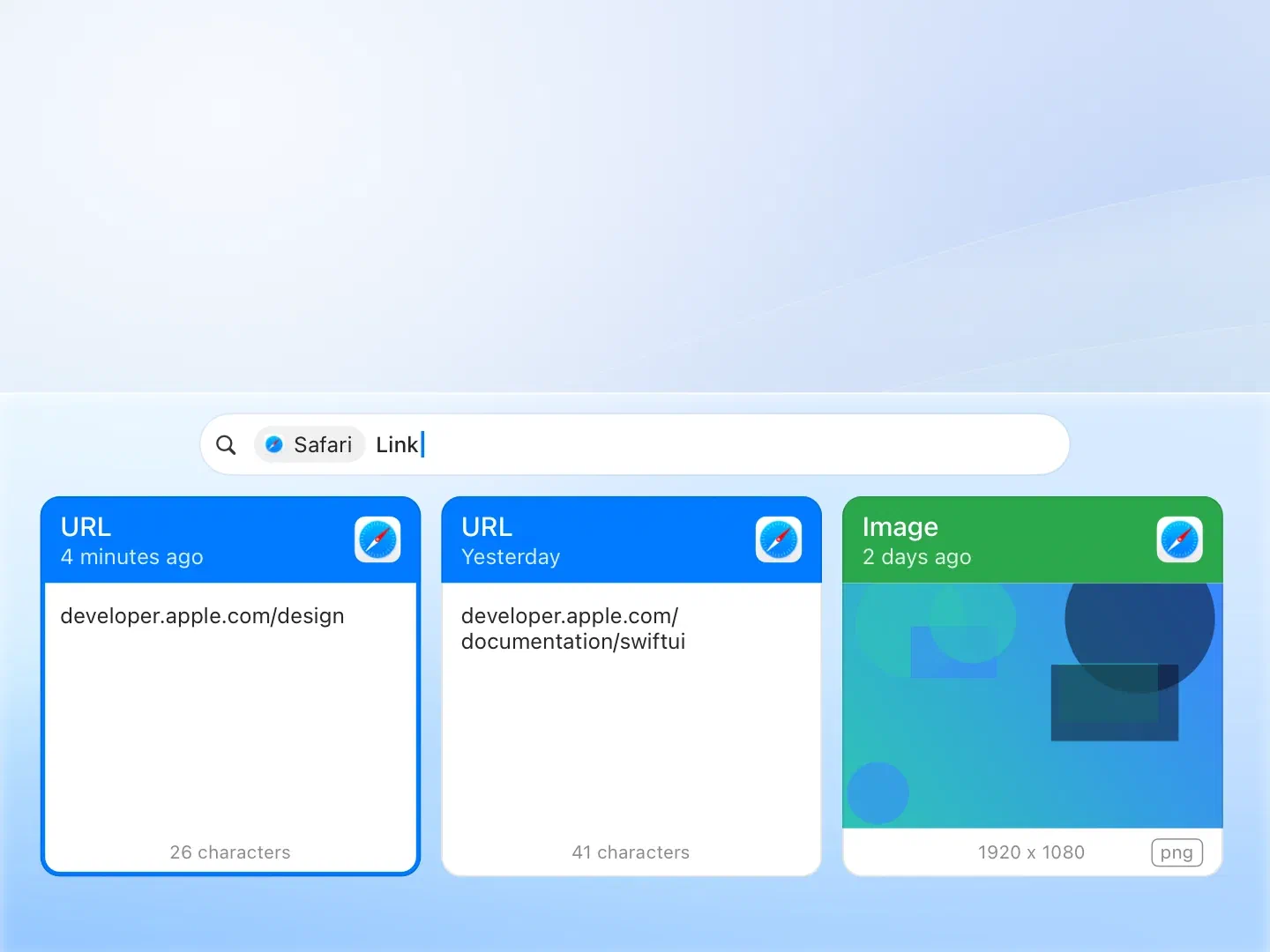
Narrow the search to one kind, one file type or one app.
Type a scope word, then your search:
- Kind:
txt,url,code,colour,img,file - File type:
png,jpeg,pdf - App:
safari,notes,mail
The scope shows as a capsule in the search field.
05
Paste in Order
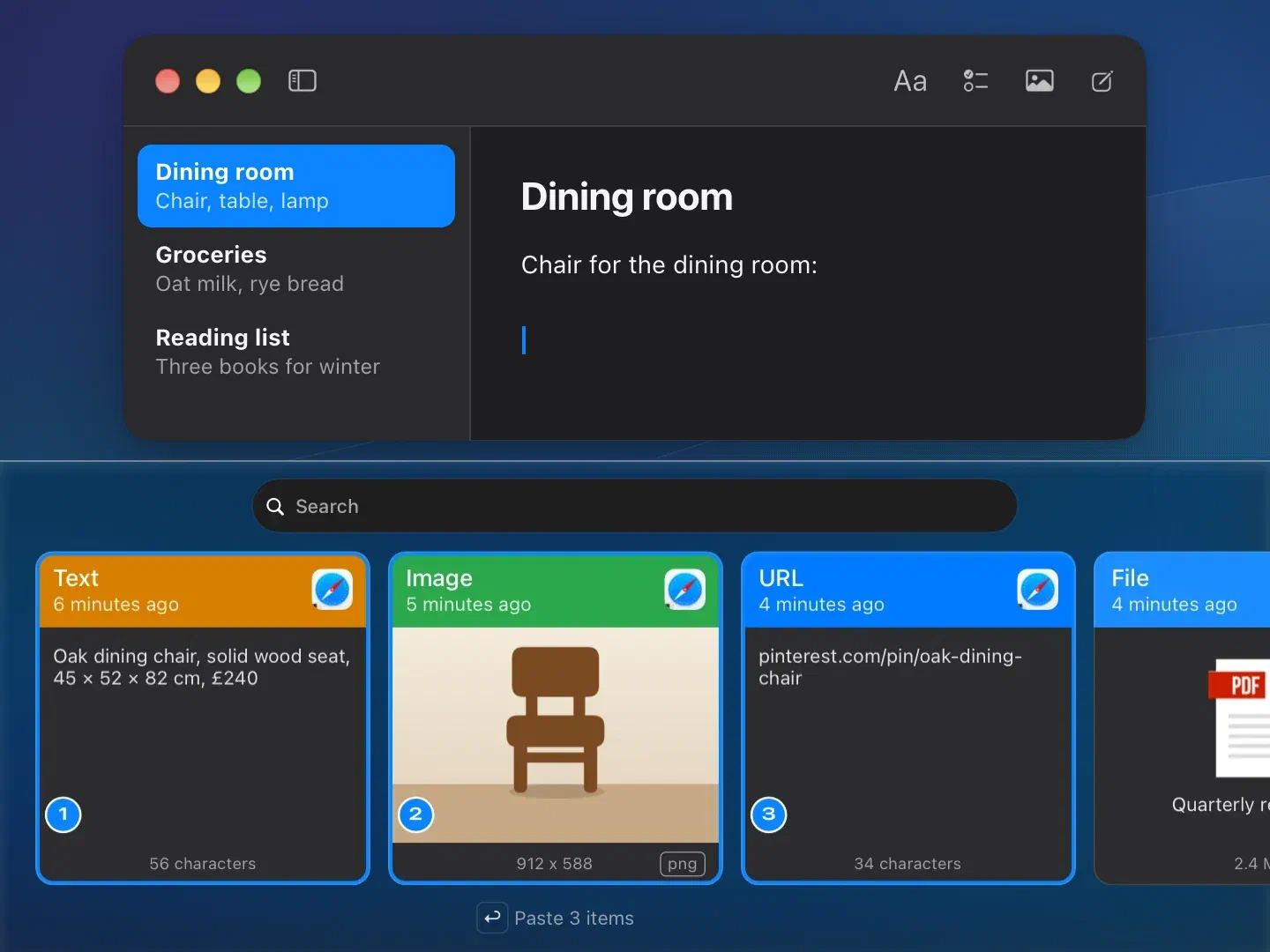
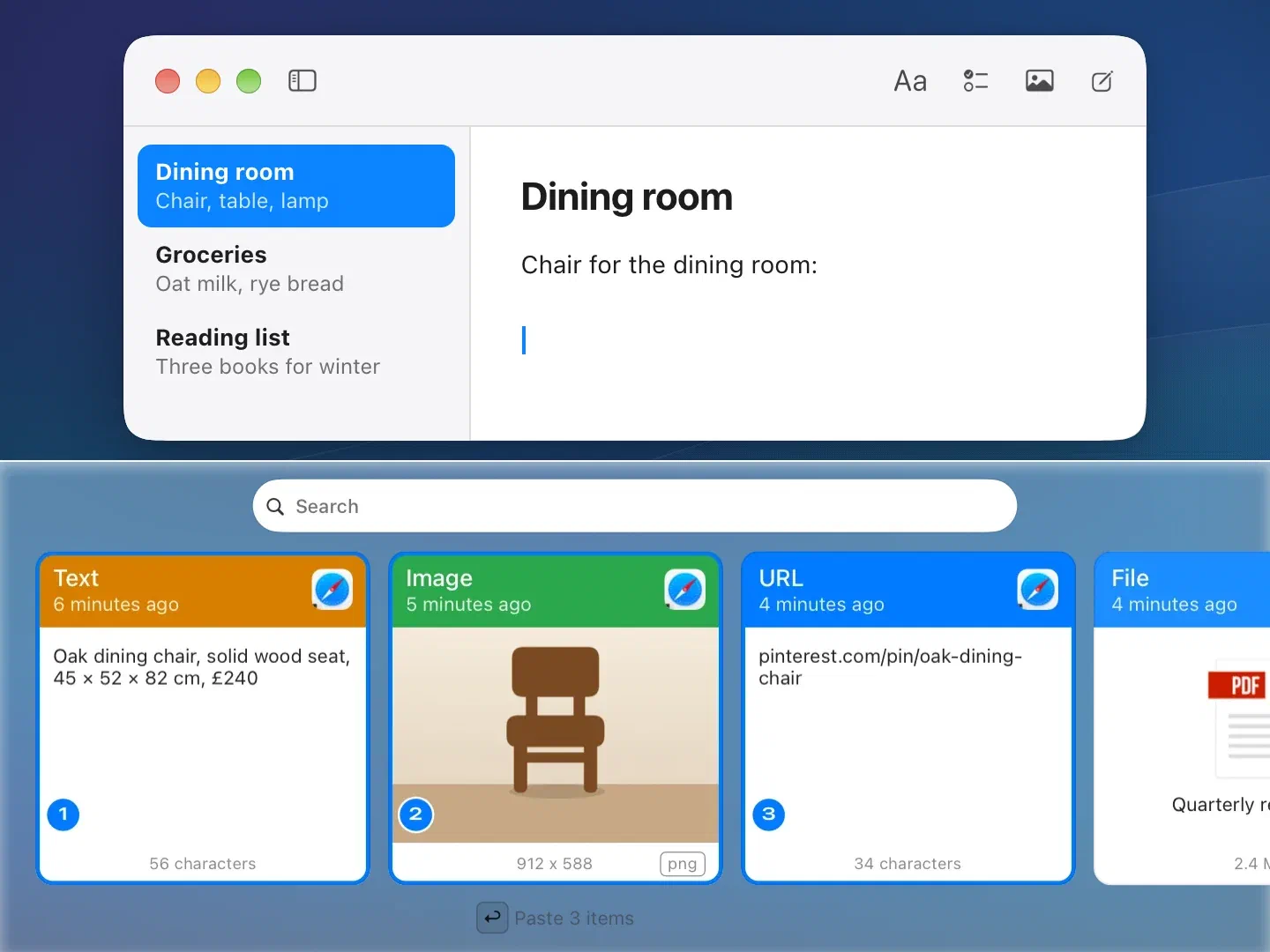
Pick several cards and paste them in the order you picked them.
- Shift← Shift→ select a range
- Space add or remove any card
- Return paste them all
- ShiftReturn paste them all as plain text
Each selected card shows its number, so you see the order before you paste.
06
Undo Any Change
Delete, edit, rename, move or clear, then press CommandZ to take it back.
07
Private by Design
Clippu works offline and leaves out what it should not keep.
- It stays local. No network, no account, no telemetry.
- Passwords stay out. Copies that password managers mark as confidential are never kept.
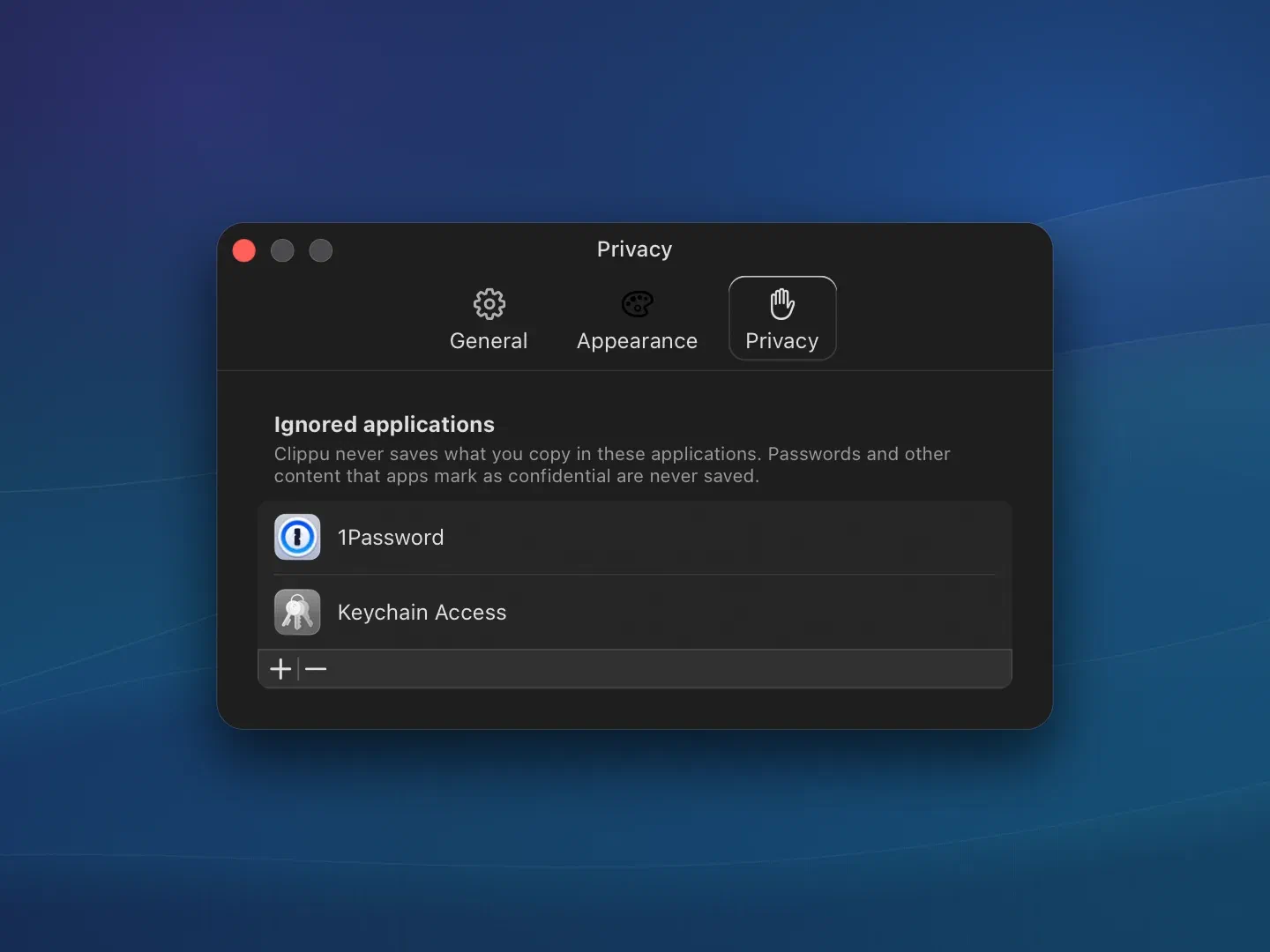
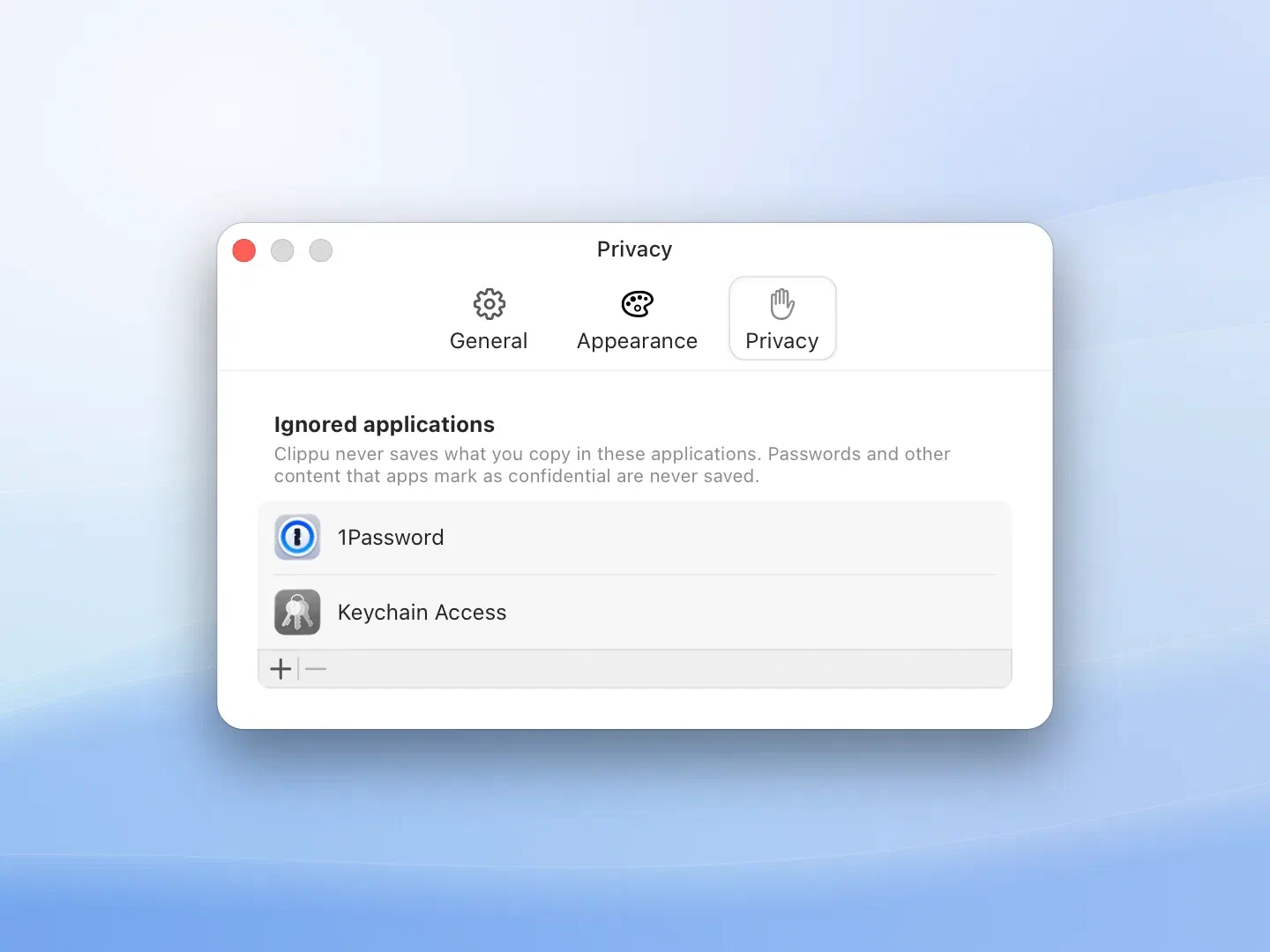
- You choose the apps. Ignore any app in Settings, and nothing you copy from it is kept.
- You set the limits. History ages out by the age and storage size you choose.
08
History Limits
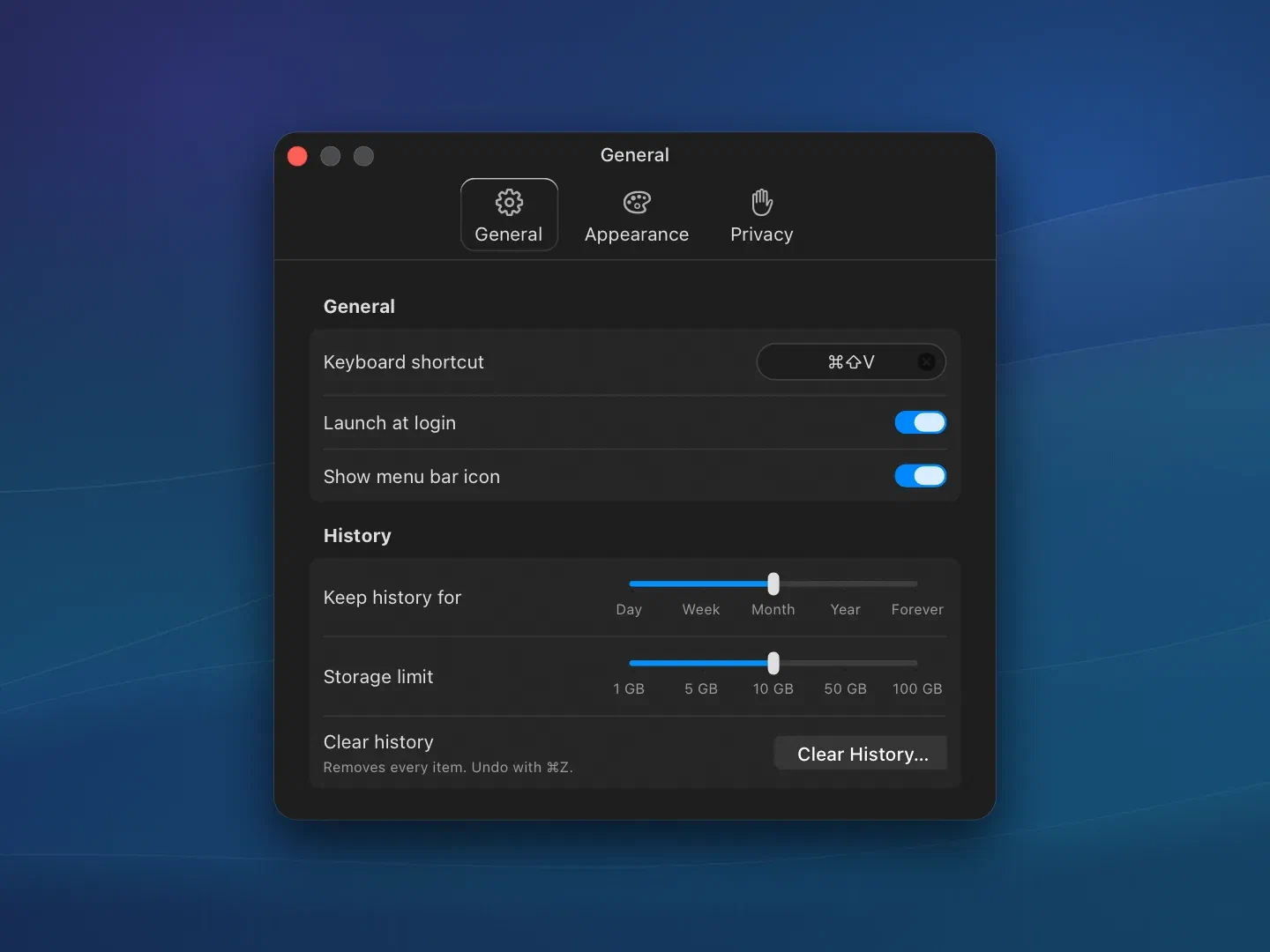
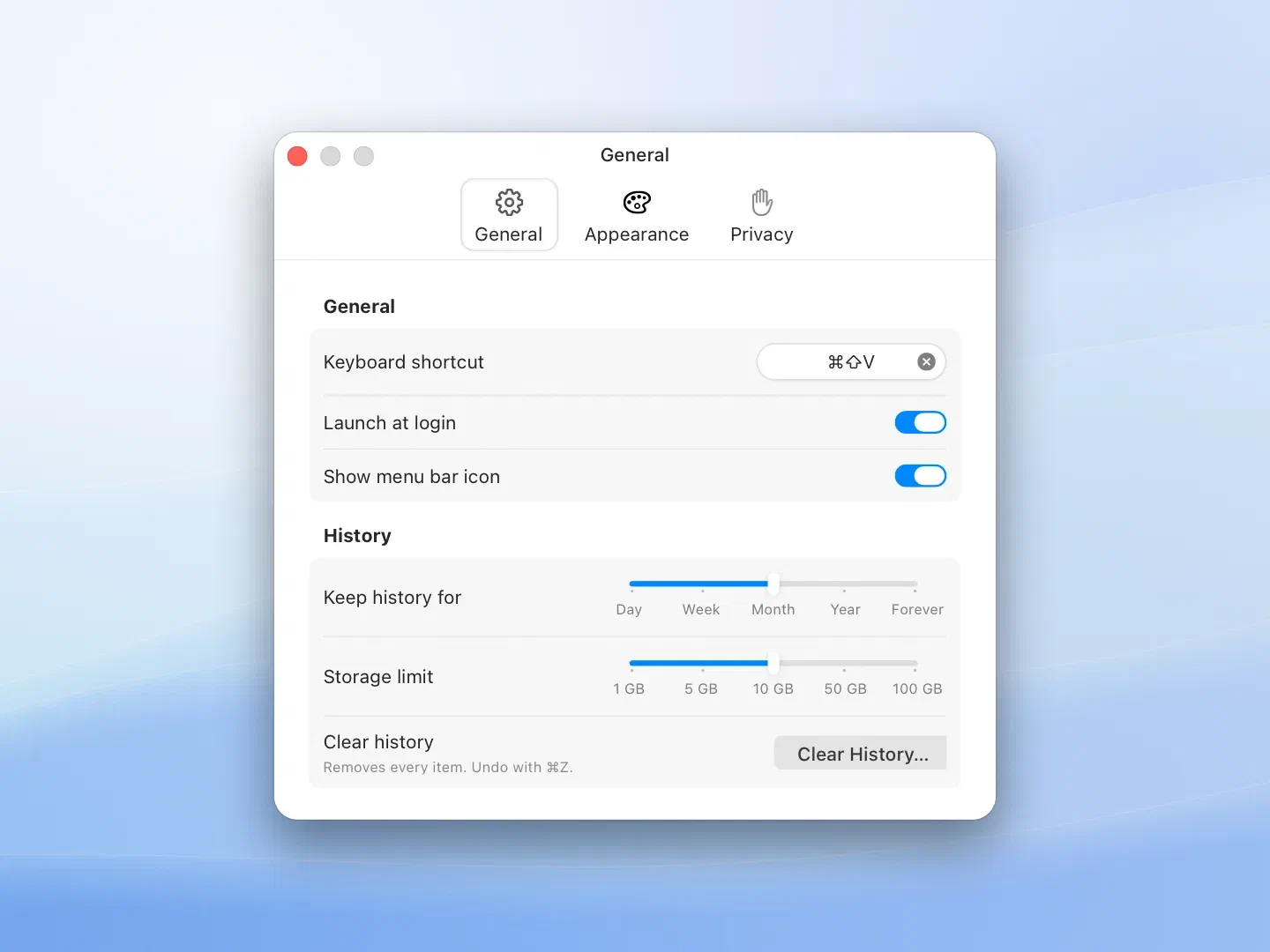
Choose how long Clippu keeps your history and how much space it can use.
- Keep history for a day, a week, a month, a year or forever.
- Storage limit from 1 GB to 100 GB. The oldest items go first.
- Clear History removes everything, and CommandZ brings it back.
Keyboard Shortcuts
Anywhere
- CommandShiftV
- Open the clipboard bar. Change it in Settings.
Search
- Down Arrow⇥
- Go from the search field to the first card
- Up ArrowShift⇥
- Go back to the search field
Cards
- ←→
- Move between cards
- Shift←Shift→
- Select a range
- Space
- Add the card to the selection or remove it
- Return
- Paste the selection
- ShiftReturn
- Paste as plain text
- CommandDelete
- Delete the selection
- CommandOption←CommandOption→
- Move the selection
- CommandE
- Edit the text of a text or link card
- CommandZ
- Undo
- Command/
- Show every keyboard shortcut
FAQ
Does Clippu send my clipboard anywhere?
No. Clippu has no network access, no account and no telemetry. Everything you copy stays on your Mac.
Will it keep my passwords?
No. Password managers mark the passwords you copy as confidential, and Clippu never keeps those copies. You can also ignore whole apps in Settings › Privacy.
How long does Clippu keep my history?
Until it reaches the limits you set in Settings: a maximum age and a maximum storage size. The oldest items go first.
Can I change how it looks?
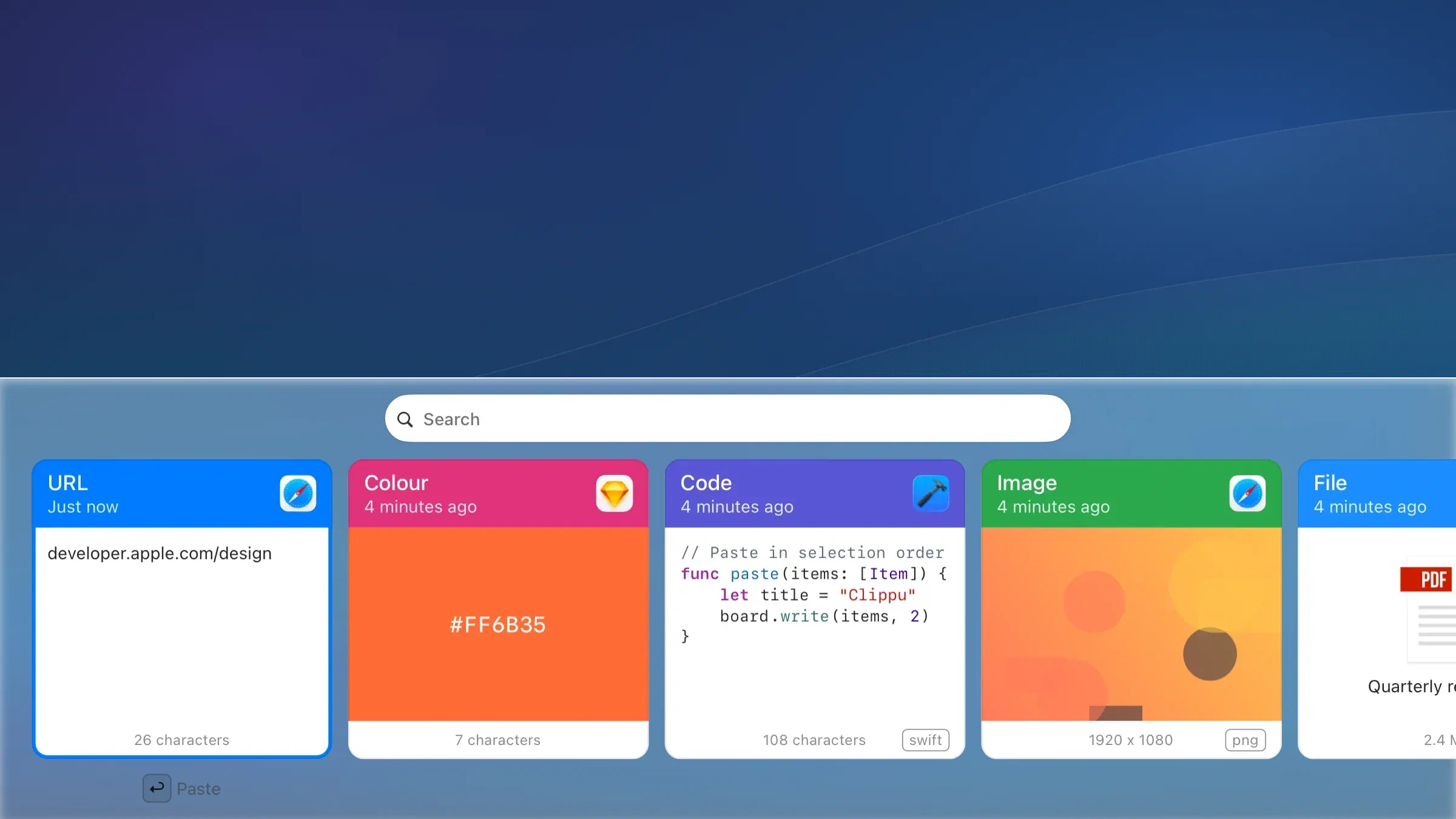
Yes. In Settings › Appearance choose Light, Dark or Auto, and put the bar at the bottom or the top of the screen.
Does it show a Dock icon?
No. Clippu works in the background and opens with your shortcut. A menu bar icon is optional.
Can I automate it?
Yes. Apple Shortcuts can paste an item, delete an item or clear your history.
When can I get it?
Clippu is in development. This page will have the download and App Store links when it is ready.